
Help pages for Yellownotes in the Cloud
...
It is a simple note-taking and reading tool that allows you to place notes on any web page, and read notes placed there by others. A consult them using our AI-based chat interface.
Start here — you can read notes without an account; writing notes and using AI chat needs a free one:
What is a YellowNote?
YellowNotes are several things. In the simplest telling, they are an electronic version of yellow, paper "sticky notes". Notes stuck to anywhere required, containing a scribled message. Notes to self and indeed anyone else.
That remain in place for you and others to read later.
A more complex telling is that YellowNotes are a way to annotate the internet. A note ties together two pieces of data: The web page it is attached to and the data it contains. With an optional third piece: a specifically selected part of the web page.
The Concierge Internet. There is an assistance aspect to YellowNotes. You can received guidance tailored to your personal needs. A YellowNote can be sent to you that is not just a link to a page but also instructions about what to do, displayed directly on the page. Rather than you having to flip between that email you got and the page where you have to do the thing.
Yet another, perhaps a more subversive telling is that YellowNotes breaks the power of the platform owners.
Because the creator of the YellowNote is not the controller of the web page it is displayed on.
Fundamentally, platform power is the power to control what appears on a web page. Exercised by the owner of the web application.
YellowNotes subverts this power. As a user you go where you please on the internet but you don't
control what you see when you get there. The owner of the web page does.
If the content is not to your liking, you just go somewhere else. But why should you have to?
With YellowNotes you can take control of what you see. You can add your own content to any web page you
visit. And you can choose to see content added by others. People you trust. Wherever you happen to be on the browser-based internet.
Yellownotes do not remove content, it just adds more.
You chose yourself who gets to show you this extra stuff.
For example: You can leave messages for others, anywhere. Messages only those you have allowed to see them.
This is not restricted to existing web sites. You can make up your own web pages and even whole internet domains, and attach notes to them.
There is also the infrastructure view of things. A web page can be knocked off-line in several ways. But YellowNotes don't exist on the web pages they are virtually "attached" to. If a web page is inaccessible, the Yellownotes attached to it still shows if the user go there. One practical upshot of this is that site owners using YellowNotes technology, can still reach their users even if their sites go offline.
Types of notes
Notes differ in the types of data they can contain. Plain text, web page (html), a remote web page displayed inside the note or a single image. Where the image notes come in several forms depending on how they are created. Currently two kinds are supported: a simple drawing or a screen capture.
Plain text

the simplest form
Webframe
Display a remote webpage inside a note.
The note can be set to zoom into a particular part of the remote webpage. The displayed content is still hosted somewhere else, the note simply providing a window to it.
Drawing
A drawing using the html canvas technology.
Simple drawing tools are included.
Topics
A Topic is a named collection of YellowNotes created and owned by a registered user. Notes are published to a Topic rather than being purely personal. Other users can subscribe to a Topic, after which they automatically see all its notes on the relevant web pages. The owner controls who subscribes and can manage or remove subscribers.
Topics as the basis for AI chat
Topics are the foundation of the AI-powered chat feature in YellowNotes. When you ask a question in the chat interface, the AI searches across all the YellowNotes belonging to the Topic to find relevant information and compose an answer. This means the quality and usefulness of the AI responses is directly shaped by the notes in the Topic — the more informative and well-organised the notes, the better the AI can answer questions about them.
Think of a Topic as a curated knowledge base: a set of notes on a subject that both human subscribers and the AI can query. The Topic owner shapes what the AI knows by choosing which notes to include.
Step-by-step: see the how-to guide Topics: create, manage and delete.
AI chat
Subscriptions
A subscription links a user to a Topic created by someone else. Once subscribed, all YellowNotes belonging to that Topic are shown on the relevant web pages when the in-page control panel is set to "show all notes." Users manage subscriptions through the /my_subscriptions page, and can view all subscribed notes in the /yellownotes_feed feed.
Step-by-step: see the how-to guide Subscriptions: create, manage and delete.
Subscribers
A subscriber is another registered user who has chosen to follow a Topic you own. When the subscriber's browser control panel is set to "show all notes," they automatically see every YellowNote you have published to that Topic on the relevant web pages. Topic owners can manage and remove their subscribers through the platform.
Step-by-step: see the how-to guide Subscribers: manage and delete.
Your data
What data is there
Export
Your data can be exported to a human-readable text file (JSON-format). The file is digitally signed by the platform and provided the file has not been edited in anyway, it can be used to restore you account.
Kinds of data:
- Your profile information, including any images
- all yellownotes created by you
Import
Installation
Congratulations, you have successfully installed YellowNotes for the Cloud browser extension in your browser.
It is available for several browsers on desktop and mobile.
The extension is free to install and use. However, to create notes that are accessible to others, you must register an account with
Yellow Notes. Registration is free. You can read notes without registering.
You will have noticed that in the upper-left corner of the web pages in your browser there is now a semi-transparent yellow bar. This is the in-page control panel for Yellow Notes. It is placed there by the Yellow Notes in the Cloud extension.

It is a sliding button with three positions. Operate it by clicking or touching the position on the slider the button should be moved to.

It can be moved by dragging the small red square in the lower right corner. The new position will remain constant for this page and will be restored when you come back to the page another time. The position of the control panel for any other webpage is unaffected.
In-page control panel settings
The position of the yellow square in the control panel determines what, if any, yellow notes are to be shown on the page. If you change it, the change will persist for this page when you come back to it another time.
Slider button in the left position

This will prevent the showing of any notes on the page.
Any notes present on the page will be removed when the slider is put in this position.
The middle position

Show only your own notes. Any notes that are not yours will be removed.
The right position
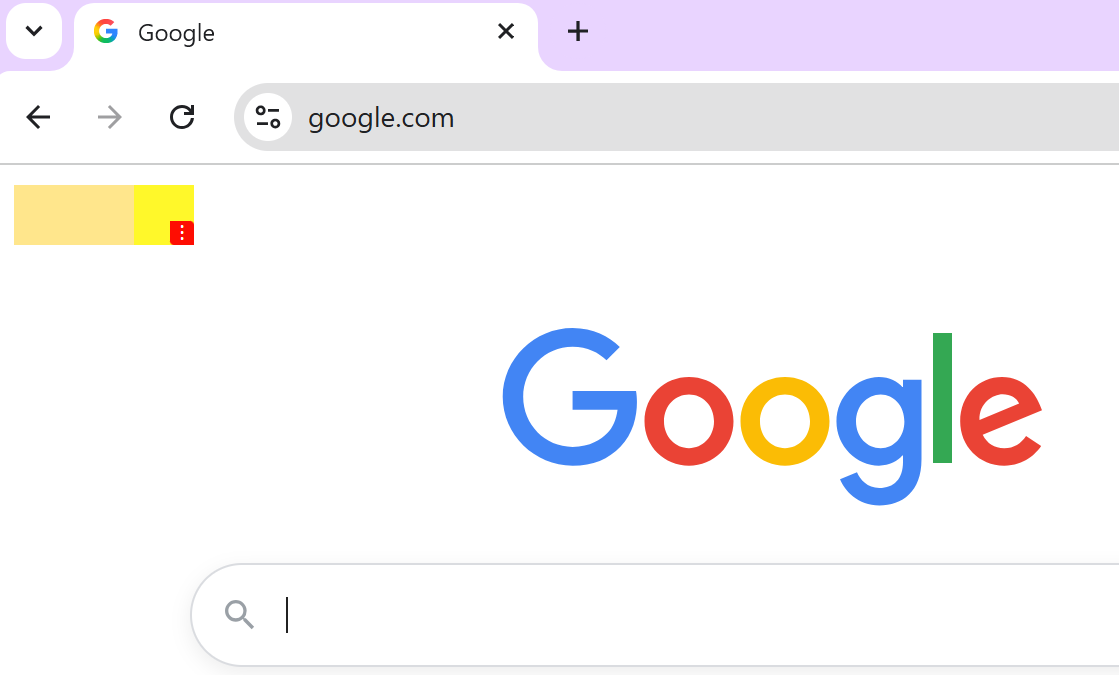
Show all applicable notes. Yours, and all notes that are part of topics you subscribe to.
The frame note example
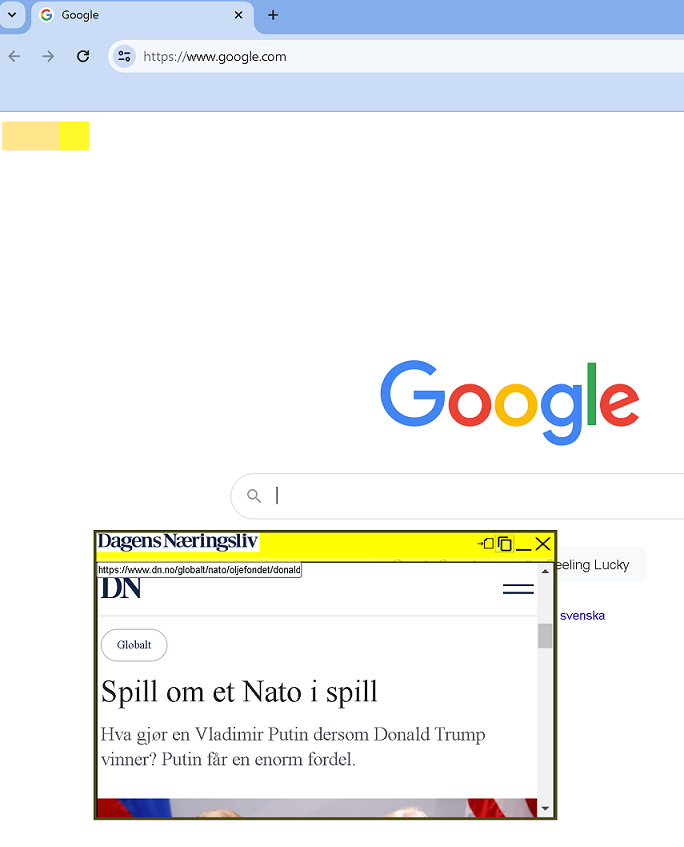
Show all applicable notes. Notes will be placed in the position they are assigned to by their creator.
Yellow Notes for the Cloud browser extension control panel
Yellow Notes for the Cloud is a browser-extension and as such has a control panel. Depending on the browser, there are different ways to access this panel.
Chrome browser for desktop

On the browser tool bar, navigate the extension icon.
On the dropdown list, select "Yellow Notes for the Cloud".

The top entry "Show control panel on all pages" toggles the display of the control panel. Uncheck to hide the panel. By default it is set to show (checked).
"Default control panel button position:" When coming to a new web page, this will be the setting for
the button in the control panel for this page.
If you change this value for a page, the changed-to value will apply for that page from then on.
"show nothing" — The left position of the yellow square in the control panel.
"show only my own notes" — The center position of the yellow square in the control panel.
"show all notes" — The right position of the yellow square in the control panel. All notes
that are part of any topic for which you are a subscriber will be shown, as well as your own. This is
the setting at installation time.
"Help with YellowNotes" — A link to this page.
"My own YellowNotes" — A link to the YellowNotes web application where you manage
your own notes.
/my_notes
"My subscribed YellowNotes" — A link to the page where you can
see all notes you subscribe to.
/yellownotes_feed
"My YellowNotes subscriptions" — A link to the page where you manage your subscriptions.
/my_subscriptions
"Attach a Yellownote to current page" — An alternate way to create a YellowNote on a page.
Click here and a blank YellowNote will appear in the upper left corner of the current page.
Yandex mobile
Yandex desktop
Kiwi mobile
all browsers
This link works in any browser with the Yellow Notes extension installed. Yellow Notes for the Cloud browser extension admin GUI
AI and YellowNotes
AI is everywhere. But it is still the case that AI with personal judgement is better than AI without it. The chat prompt in Yellow Notes
How to create yellow notes
Yellownotes are created from the context menu. Either highlight the part of the page you want to attach a note to and right click. Or place the cursor where you want the note, and then right click.
If you are using a touch screen it is much the same with the difference that you simply press and hold to open the context menu.
select type of note

Click the drop-down icon to the right "select note type".
A list of note types will appear.
"plain" text yellow notes
A plain square you can type a message text into.
attach a yellow note to a selection

attach a yellow note to a page

Webframe notes
This note contains the content referred to by a URL. It is a window into another webpage.
attach a webcontent note to a selection

attach a webcontent note to a page
Capture notes
This note contains a screen capture of a webpage.
attach a capture note to a selection

attach a capture note to a page

Webpage notes
This note contains a standalone webpage.
Canvas notes
Want to make a handwritten note? Canvas is technology for drawing on web pages.
Creating the note
Editing the note